
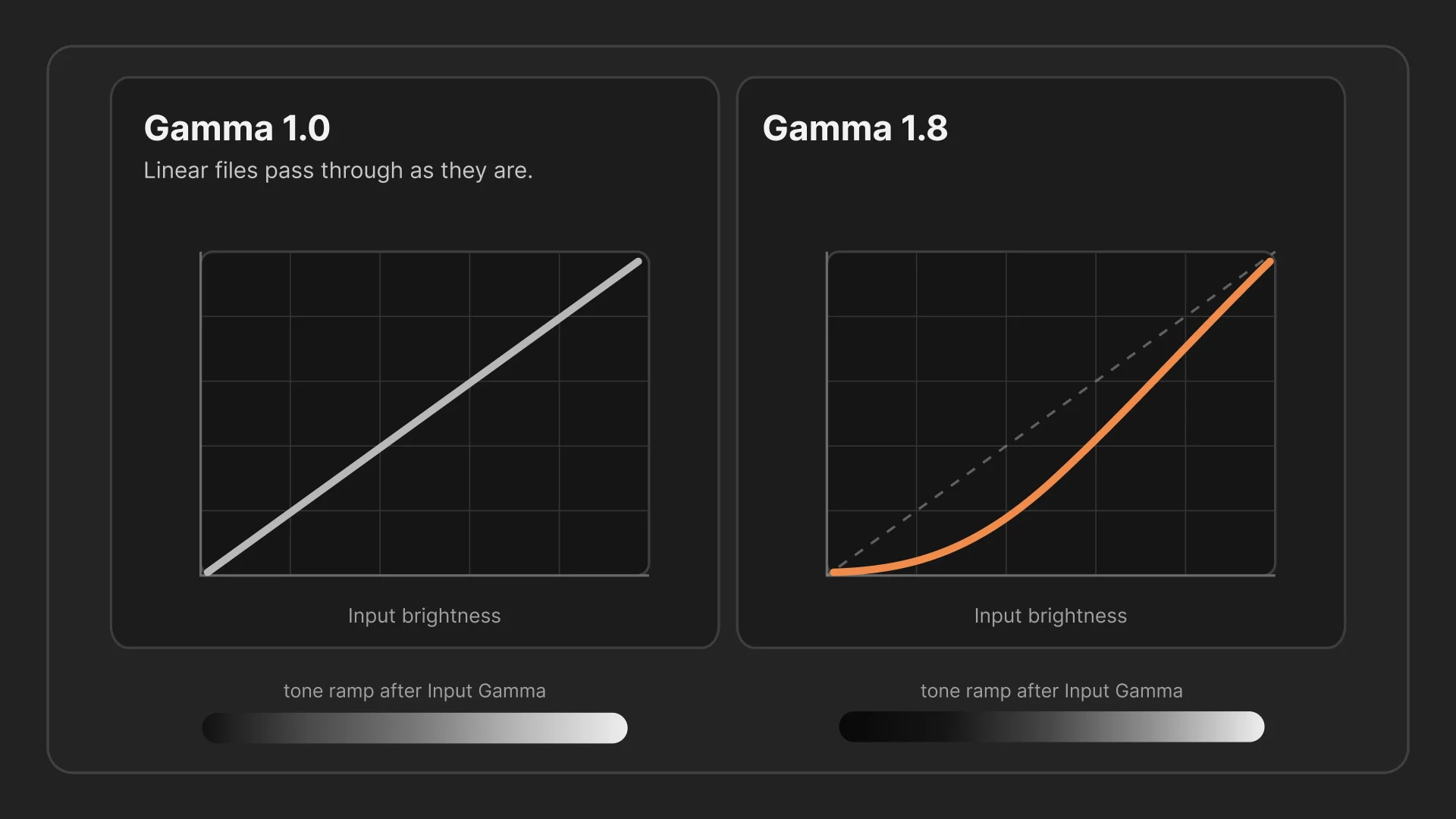
If you’ve updated to the latest version of DBW Linear Scans, you’ll notice a new Input Gamma control with several presets and a Custom slider.
Input Gamma Presets in DBW Linear Scans
At first glance it might look like another contrast adjustment, but it isn’t. Its job is much more specific.
Input Gamma tells DBW Linear Scans how your scan was encoded before it performs the negative conversion. Getting this right allows the software to work from the data it was designed to process.
What problem does this solve?
DBW Linear Scans is designed to produce the best results from linear scan data whenever possible.
Some scanners and scanning software save files that are already gamma encoded rather than truly linear. This changes how brightness values are distributed, particularly through the midtones.
If DBW receives a gamma-encoded file but assumes it is linear, the conversion will not be as accurate as it could be. The new Input Gamma control allows you to tell DBW what type of data it is receiving so it can correct it before any negative conversion takes place.
What Input Gamma does
Think of the process like this:
“You gave me a gamma 1.8 file. I’ll put it back to linear gamma 1.0. Then I’ll do the negative conversion.”
That’s exactly what happens.
Input Gamma is not applying a look or creating extra contrast. Instead, DBW first removes the scanner’s gamma encoding, returning the image as closely as possible to linear gamma 1.0. Only after that does it perform its normal negative-to-positive conversion.
If your scan is already linear, simply leave Input Gamma set to 1.0, which means:
Leave the input exactly as it is.
Understanding the presets
The available presets are:
- 1.0 – Input is already linear. No correction is applied.
- 1.5
- 1.6
- 1.7
- 1.8
These higher values are intended for scans that appear to have been saved using a scanner-style gamma curve.
When you choose one of these presets, DBW Linear Scans assumes the input was encoded with that gamma and applies the opposite correction to return it towards linear before conversion.
For example:
- Scanner outputs approximately gamma 1.8.
- You select Input Gamma 1.8.
- DBW Linear Scans linearises the file back towards gamma 1.0.
- DBW Linear Scans then performs its normal negative conversion.
It’s important to understand that choosing Input Gamma 1.8 does not mean the negative conversion itself uses gamma 1.8. The correction happens first. The conversion happens afterwards.
When should I use Custom?
Not every scanner follows an exact gamma value.
Some scanning software applies its own tone curve, while others sit somewhere between the common preset values.
The Custom slider lets you fine-tune the input correction when:
- you don’t know the scanner’s exact gamma
- you’ve measured it using a step wedge or calibration target
- you’re trying to match previous scanning workflows
- a preset is close but doesn’t quite produce the expected result
For most photographers, the presets will be the easiest place to start. Custom is there when you need a little more precision.
How do I choose a starting point?
If you know your scanner or software produces linear data, simply leave Input Gamma at 1.0.
If you’re unsure:
- Start with 1.0.
- Try the available presets.
- Compare the results.
- Choose the version that produces the most natural-looking conversion.
This isn’t about adding contrast or creating a particular style. You’re simply telling DBW what type of data it received so it can undo the scanner’s encoding correctly before converting the negative.
A quick note about the gamma graph
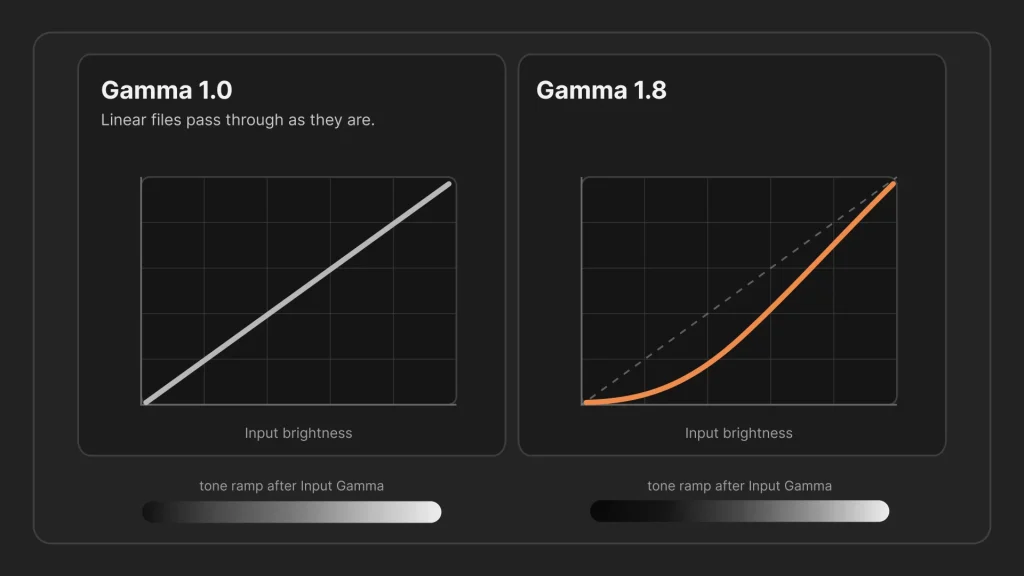
If you’ve looked at the Input Gamma graph, you may notice the curve changes as different values are selected.
A straight diagonal line represents gamma 1.0, where the input is left unchanged.
As the selected gamma increases above 1.0, the curve moves below the diagonal. This reflects the correction being applied to undo the scanner’s gamma encoding and return the image towards a linear response.
Throughout this process:
- Black stays black.
- White stays white.
- Midtones is where gamma encoding has the greatest effect.
This is why Input Gamma primarily affects tonal relationships rather than clipping or shifting the endpoints.
Input Gamma versus Inversion Power
These two controls serve completely different purposes.
Input Gamma is an input correction.
It answers the question:
“What kind of file did the scanner give me?”
Its job is to restore the scan towards linear before any inversion takes place.
Inversion Power controls the character of the negative-to-positive conversion itself.
It determines how the film densities are translated into the final positive image after the input has already been corrected.
In simple terms:
- Input Gamma prepares the scan.
- Inversion Power controls how the negative is converted.
Keeping these two stages separate gives you much more predictable and repeatable results.
Summary
The new Input Gamma control is designed to make DBW Linear Scans more flexible when working with scans that are not truly linear.
Remember these key points:
- Input Gamma is not a creative contrast control.
- It tells DBW what gamma your scanner or file appears to have used.
- DBW first linearises the scan back towards gamma 1.0.
- Only then does it perform the normal negative-to-positive conversion.
- 1.0 leaves the input unchanged.
- 1.5, 1.6, 1.7 and 1.8 are convenient presets for common scanner-style gamma values.
- Custom provides fine control when the exact input gamma is unknown or when matching calibration targets.
- If you’re unsure which value to use, try the presets and choose the one that gives the most natural-looking result, remembering that you’re correcting the input rather than changing the image’s artistic appearance.
Download Latest Version of DBW Linear Scans
Note: Apple Mac Requires macOS 11 (Big Sur) or later.
DBW Linear Scans is a desktop application available with a simple one-time purchase. There are no subscriptions, and all future app updates are included free of charge. Buy DBW Linear Scans