
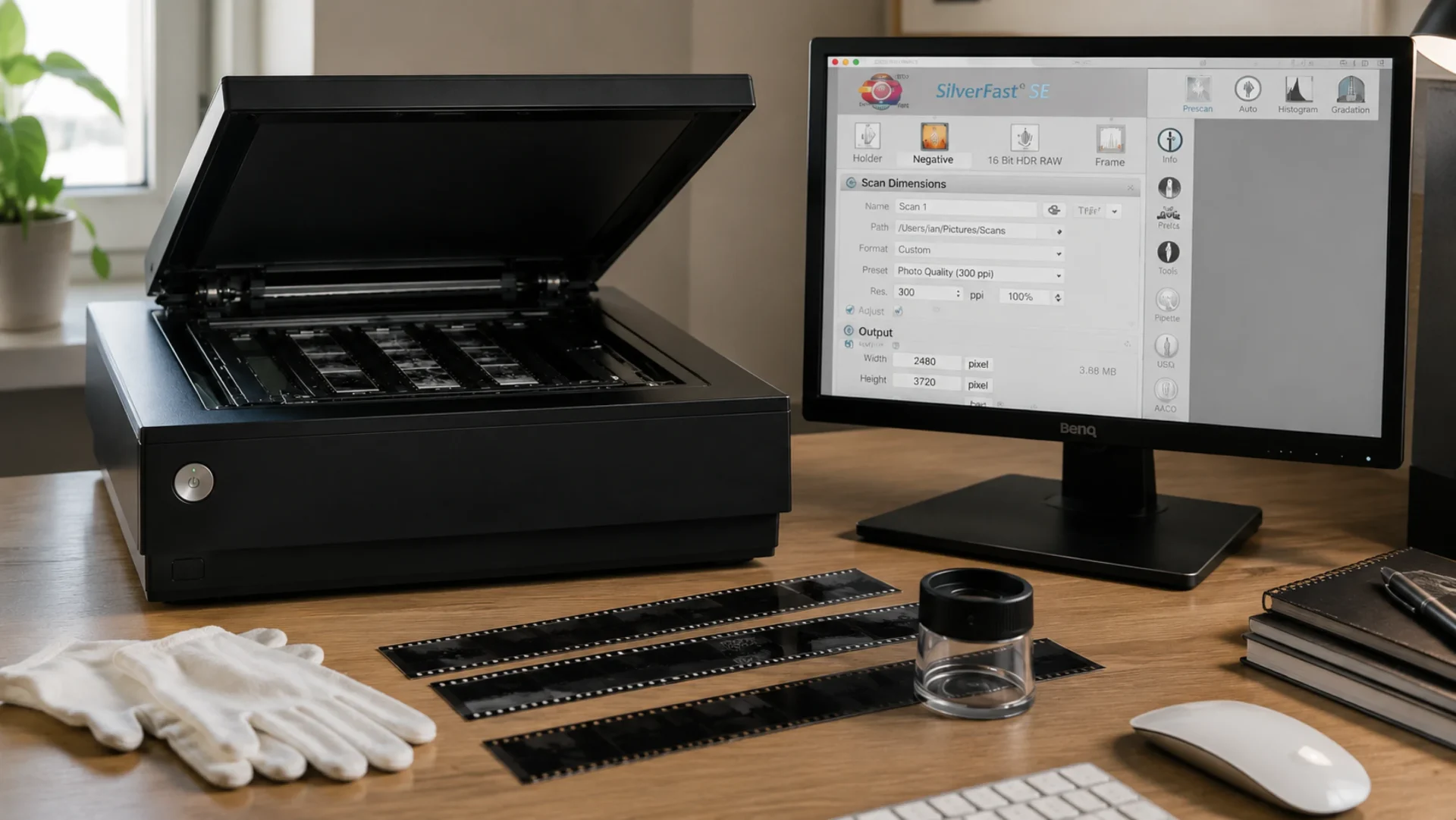
When scanning black and white negatives, getting a good conversion starts with getting the right data from the scanner.
For my own workflow, I prefer to separate these two stages. I want the scanner software to capture the negative as faithfully as possible, which I do using the DBW Scanner app. I can then make the actual conversion afterwards using DBW Linear Scans.
My DBW Scanner is the perfect match for DBW Linear scans but it will only work with the Epson V700 / V750 / V800 and V850.
Many people have realised this and reach out to me to ask if SilverFast would produce a clean linear raw scan which would work with my DBW Linear Scans.
I perfomed some test and this is where SilverFast SE becomes particularly interesting.
SilverFast SE is the entry level version of SilverFast and it is easy to assume that you need one of the more expensive versions to create a proper 16 bit linear scan.
You don’t.
With a supported scanner, SilverFast SE can produce 16 bit HDR RAW greyscale files, giving us an excellent starting point for a black and white negative conversion.
What is a linear RAW scan?
When we make a conventional scan of a negative, the scanning software will often do much more than simply capture the information from the scanner.
Depending on the settings being used, it might convert the negative to a positive, alter contrast, apply a tone curve, adjust gamma, sharpen the image or make other corrections.
These adjustments can be useful when you want the scanning software to produce a finished image.
For a linear scanning workflow, however, I want something different.
I want the scanner to capture the information contained in the negative while applying as little image processing as possible. The resulting image is not supposed to look finished. In fact, viewed normally, a linear negative scan can look rather strange.
That is because the conversion comes afterwards.
This gives software such as DBW Linear Scans access to the underlying scanner data rather than an image that has already had important tonal decisions made by the scanning software.
SilverFast SE has a 16 Bit HDR RAW mode
This is the important part.
Despite being SilverFast’s BASIC edition, SilverFast SE supports 48/16 Bit RAW Data where the scanner hardware supports the feature. This is confirmed in LaserSoft Imaging’s current SilverFast version comparison documentation. SilverFast
For black and white film, the relevant option is:
16 Bit HDR RAW
SilverFast describes its 16 bit HDR greyscale mode as creating a RAW file containing a single 16 bit greyscale channel. Its documentation describes HDR scan files as unmodified RAW files intended to retain the information captured by the scanner. SilverFast Blog
LaserSoft Imaging has also previously clarified specifically that SilverFast SE can create 16/48 bit HDR RAW files. SilverFast Forum
That makes SilverFast SE much more capable for linear film scanning than its position as the entry level SilverFast edition might suggest.
Why 16 bit matters
An 8 bit greyscale image provides 256 possible values from black to white.
A 16 bit greyscale image can represent 65,536 possible numerical values.
That additional precision is particularly valuable during a linear workflow because substantial tonal transformations take place when the negative is converted into a positive image.
Rather than asking SilverFast to make those decisions during scanning, I can retain the higher bit depth and perform the conversion afterwards with DBW Linear Scans.
SilverFast HDR RAW is designed to remain unprocessed
This is another important distinction.
16 Bit HDR RAW is not simply an ordinary greyscale TIFF saved at 16 bits.
LaserSoft describes its HDR RAW files as a form of RAW data from analogue originals and positions them as the basis for a non destructive workflow. SilverFast
LaserSoft support has also described 16 bit HDR greyscale output as an unmodified 16 bit TIFF RAW file. SilverFast Forum
This is exactly what I want for a linear negative conversion workflow.
Instead of:
Negative → scanner processing → positive image
I can use:
Negative → SilverFast SE 16 Bit HDR RAW → DBW Linear Scans → positive image
The scanner acquisition and negative conversion become two distinct stages.
I tested it with an Epson V800
I have tested this workflow using an Epson Perfection V800 and SilverFast SE 9.
SilverFast SE presents 16 Bit HDR RAW directly as one of the available scanning modes.
More importantly, I tested the resulting 16 bit file rather than simply assuming that something labelled RAW must be linear.
Using a calibrated Stouffer transmission step wedge allowed me to examine how the recorded pixel values changed as optical density increased.
The resulting values exhibited the behaviour expected from linear scanner data, providing useful confirmation that SilverFast’s 16 Bit HDR RAW output is suitable for the linear conversion workflow used by DBW Linear Scans.
It isn’t limited to the Epson V800
The availability of individual SilverFast functions can depend upon the scanner hardware, so I would not claim that every scanner supported by SilverFast necessarily provides the same RAW modes.
However, HDR RAW is certainly not exclusive to the V800.
SilverFast supports RAW workflows with numerous film capable scanners from manufacturers including Epson, Plustek, Nikon, Reflecta, Canon and Pacific Image.
The important thing is to check that your particular scanner supports the required SilverFast HDR RAW mode.
Do you need SilverFast SE Plus?
Not necessarily.
This is perhaps the most interesting discovery from my testing.
If your objective is simply to obtain a high quality 16 bit RAW scan for subsequent conversion, SilverFast SE may already provide what you need.
SilverFast’s current comparison documentation shows 48/16 Bit RAW Data in SE, SE Plus and Ai Studio. SilverFast
SE Plus adds additional capabilities, most notably Multi Exposure on compatible scanners. SilverFast describes Multi Exposure as combining acquisitions at different exposures to increase usable dynamic range and improve information from difficult areas of film. SilverFast Blog
That can certainly be useful.
But it is a separate question from whether SilverFast SE can produce 16 bit RAW scanner data in the first place.
It can.
How It could be used for DBW Linear Scans
For a black and white negative, the basic workflow is refreshingly simple:
- Open SilverFast SE and select the negative or transparency scanning mode appropriate for the scanner.
- Make a prescan and position the scan frame.
- Select 16 Bit HDR RAW.
- Choose the required scanning resolution.
- Scan the negative to a 16 bit TIFF.
- Open the resulting linear scan in DBW Linear Scans and perform the negative conversion there.
One of the advantages of HDR RAW mode is that SilverFast deliberately restricts normal image optimisation because the objective is to preserve the scanner data rather than create a finished image.
That is precisely what we want.
A surprisingly affordable linear scanning solution
SilverFast has a reputation for being professional scanning software, and its higher end versions offer an extensive collection of tools.
But if your objective is specifically to produce linear scans of black and white film, don’t overlook SilverFast SE simply because it is the BASIC version.
Its ability to produce 16 bit HDR RAW files on supported scanners means you can use SilverFast primarily for what it does particularly well: communicating with the scanner and acquiring high quality data.
Then let DBW Linear Scans handle the black and white negative conversion.
For photographers who prefer to keep scanning and conversion as separate stages, it makes for a simple and very capable workflow.
SilverFast SE → 16 Bit HDR RAW → DBW Linear Scans → Finished black and white image
Sometimes the BASIC version is capable of rather more than its name suggests.
Where can I try SilverFast SE ?
If you’d like to try the SE version of SilverFast with some of your own black and white film negatives, I strongly recommend downloading the 30-day free trial directly from the official Silverfast Website.
It’s a great way to see how SilverFast performs with your own negatives before deciding whether it’s right for you.