DBW Scanner “Preview Failed” How to Fix It
Preview failed: Error: esci: claim interface: failed to claim interface … libusb: bad access [code -3]
If you are using an Epson Perfection V700, V750, V800 or V850 scanner with the DBW Scanner app on macOS or Windows, you may occasionally see a Preview failed error.
The good news is that this does not necessarily mean there is a problem with your scanner or with DBW Scanner.
In some cases, Epson Event Manager or Epson Scanner Monitor can remain running in the background and take control of the scanner's USB connection. This prevents another scanning application from accessing the scanner.
This has been seen on some Macs and Windows PC's, but it does not affect every Epson scanner or every computer.
The error you may see
The error normally contains wording similar to:
Preview failed: Error: esci: claim interface: failed to claim interface … libusb: bad access [code -3]
Despite the technical looking error message, the error means another application already has control of the scanner and the fix is quite simple.
What is causing the error?
The error is caused by the Epson Event Manager which is holding the USB open and preventing DBW Scanner from communicating with the Epson Scanner.
What is Epson Event Manager
The Epson Event Manager is background software supplied by Epson. It monitors your scanner and responds to things such as pressing the physical buttons on the scanner. Occasionally it can keep control of the scanner connection, which prevents another scanning application from accessing it. Quitting Epson Event Manager simply releases that connection.
Fix For Windows
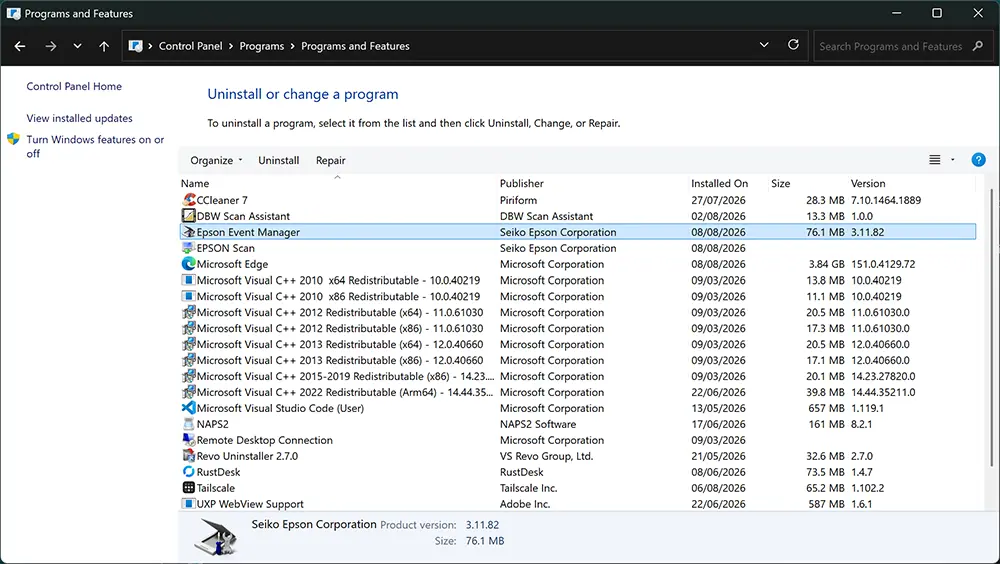
Uninstall Epson Event Manager
If you do not use the physical buttons on your scanner to start scans or launch Epson software, you probably do not need Epson Event Manager.
My suggestion is to remove it using Windows Control Panel. This prevents Epson Event Manager from taking control of the scanner connection and interfering with DBW Scanner.
If you later decide that you need the scanner button functions, Epson Event Manager can be installed again.
Quit Epson Event Manager Process
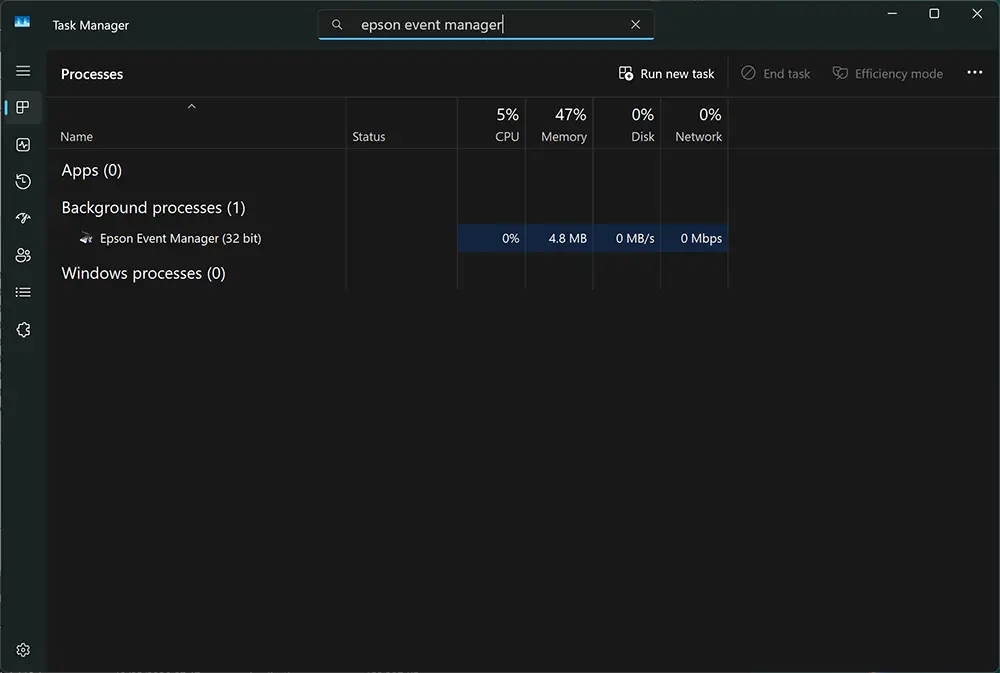
If you really need to have the Epson Event Manager installed then the other way is to quit the process when you want to use DBW Scanner.
Open Windows Task Manager, search for Epson Event Manager and quit the process. This may return the next time you reboot windows because its most likely set to be a background process which starts at boot up.
Fix For macOS
On macOS, the software is called Epson Event Manager. If you have installed it, you will most likely find it in your Applications folder under Epson Software.
If you do not use the physical buttons on your scanner to start scans or launch Epson software, you probably do not need Epson Manager. My suggestion is to remove it.
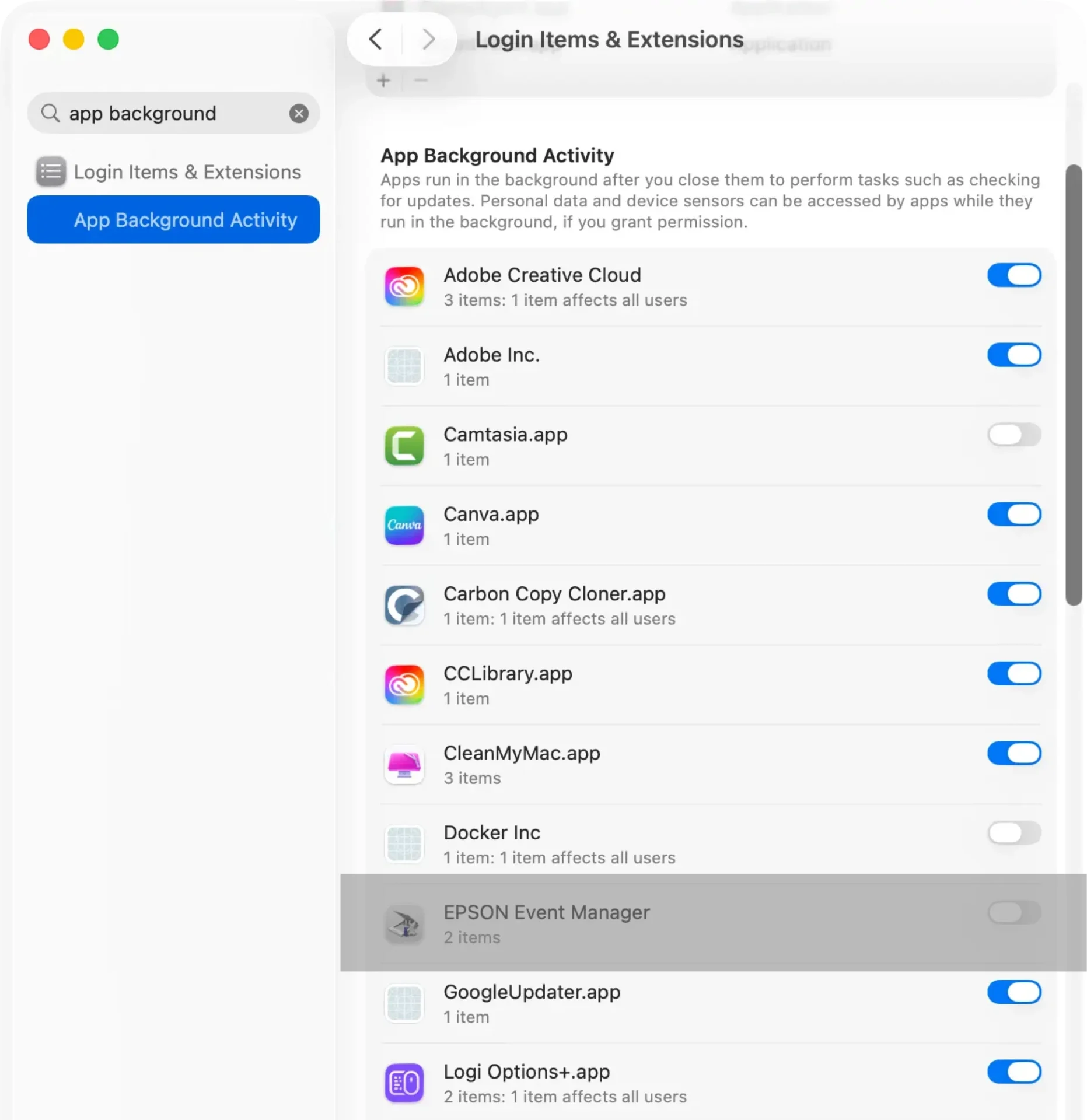
If you prefer to keep Epson Event Manager installed, you can quit or disable it before using DBW Scanner. This releases the scanner connection so DBW Scanner can access it normally.
Disable macOS Epson Event Manager Background Activity